How to Send Email to Class

- You can choose the time to send this email.
- For a valid email, Status must be set to "Enable"


|
How to Send Email to Class |
|
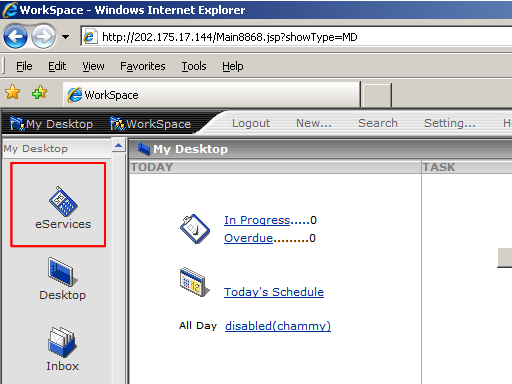
| Step 1 | - Login to eServices |
|
|
|
| Step 2 | - Login with your username and password |
|
|
|
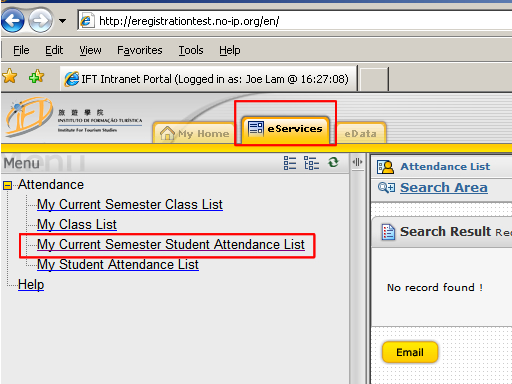
| Step 3 | - After successfully login, Click "eServices" then choose "My Current Semester Student Attendance List" |
|
|
|
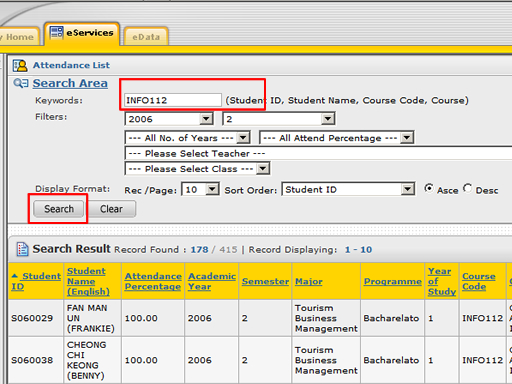
| Step 4 | - if you are teaching more than one class, you can filter the student through "Search Area" then click "Search" |
|
|
|
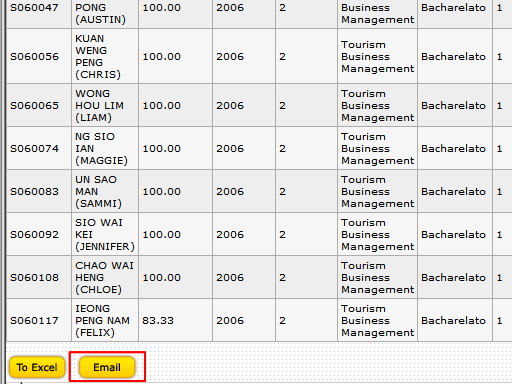
| Step 5 | - After filter the result, it displays the whole class of students. |
|
|
|
| Step 6 | - Input the information of the email,
all the fields with * are compulsory
fields. - You can choose the time to send this email. - For a valid email, Status must be set to "Enable" |
|
|
|
| Step 7 | - In the Email Content, you can input the content. Click "Save" when ready to send. |
|
|
|